Open the file in the workspace
Drop your embroidery file (PES, DST, JEF, VP3, EXP, HUS, XXX, EMD) into the StitchPilot.ai workspace. The design renders with its current color sequence and dimensions.
 StitchPilot.ai
Tutorial · Editing
Light editing — color changes, placement adjustments, removing or repositioning elements — works in the browser without installing desktop software. Heavy stitch-by-stitch editing still belongs in a desktop suite. This guide walks through the practical editing flows StitchPilot.ai supports.
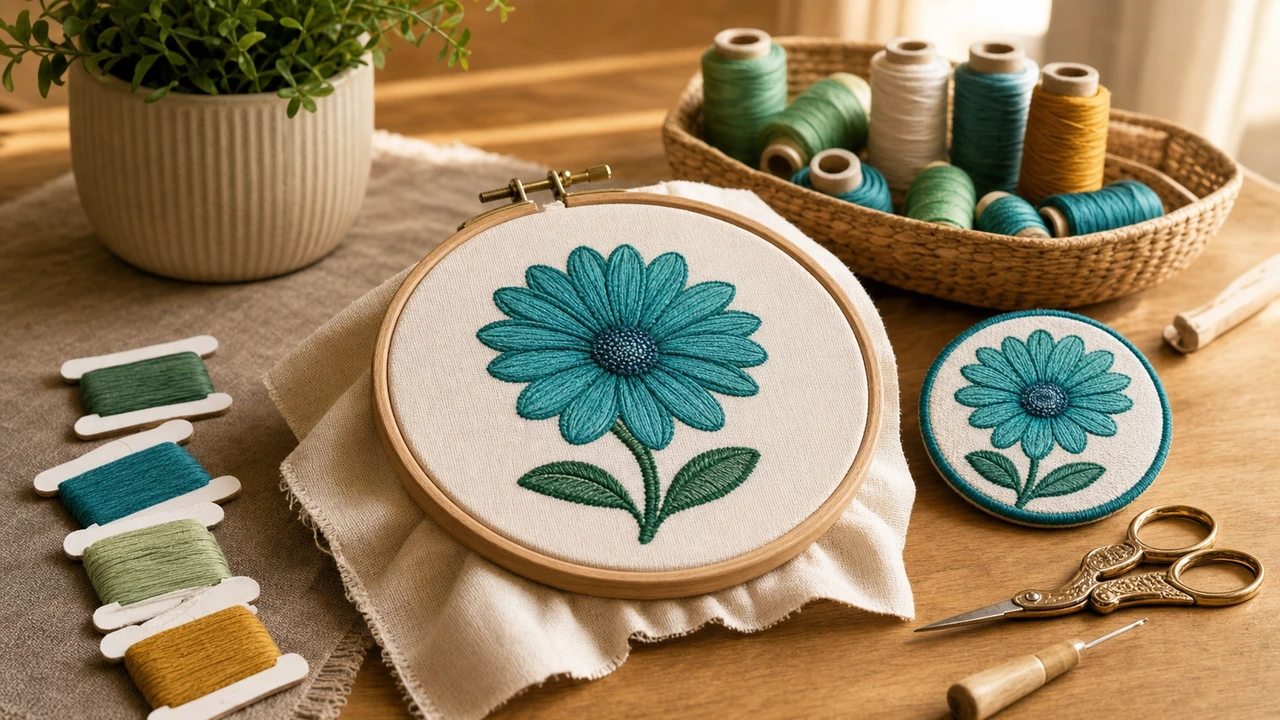
Practical editing
Drop your embroidery file (PES, DST, JEF, VP3, EXP, HUS, XXX, EMD) into the StitchPilot.ai workspace. The design renders with its current color sequence and dimensions.
Reassign thread colors per object, reorder the stitch sequence, and preview how the change affects the visual result before exporting.
Move objects on the canvas, resize within safe ranges (see the resize guide), or remove unwanted elements. Each change updates the preview in real time.
Save the edited design as PES, DST, JEF, VP3, EXP, HUS, XXX, or EMD. The same edited source can target every major embroidery machine.
What you can edit
In-browser editing handles the common adjustments that come up in everyday production:
What still needs desktop software
For these tasks, a desktop suite (Wilcom, Hatch, Embrilliance) is still the right tool:
How to edit embroidery file — common questions
Yes, for common adjustments — color changes, placement, ordering, light resizing, format conversion. Stitch-by-stitch path editing still benefits from a desktop suite, but the day-to-day editing flows work in the browser.
Color and ordering changes are non-destructive — they just rewrite metadata. Resizing within safe ranges recalculates density to preserve quality. Heavy edits (rebuilding fills, custom underlay) are out of scope.
Yes, with some etiquette: marketplace files are often licensed for personal use. Editing for your own production is fine; re-selling an edited derivative is typically not. Check the file's license terms.
Yes. The workspace tracks edits per session — undo / redo work for all editing operations until you close the tab.
Save the edited file as your chosen output format (PES, DST, JEF, etc.) and reopen it in the workspace next session. The edited file is the save state.
Edit without installing
Color changes, placement, ordering, light resize, format conversion — all in the browser. Export to any major embroidery format when done.
Open the workspace →