Drop the EXP file
Drag your .exp file into the StitchPilot.ai viewer, or use the file picker. The file is read in your browser — useful for opening designs without committing to a machine run.
 StitchPilot.ai
Tutorial · EXP file
EXP is a widely-used embroidery format associated with Melco commercial systems and Bernina home embroidery machines. Open one in your browser with StitchPilot.ai — view stitches, check the color order, export a PNG preview, or convert to another format for a different machine. No Melco / Bernina software install required.
Step-by-step
Drag your .exp file into the StitchPilot.ai viewer, or use the file picker. The file is read in your browser — useful for opening designs without committing to a machine run.
See the design rendered with stitches, color order, and approximate dimensions. Identify color changes, hoop fit, density anomalies, or unexpected gaps before transferring to your Melco / Bernina machine.
Save a PNG preview if you need to share the design with a client, list it on a marketplace, or include it in a design library archive.
If you need to run the design on a non-Melco / Bernina machine, convert EXP to PES (Brother), DST (Tajima), JEF (Janome), or other supported formats.
Other ways to open a EXP
For opening EXP files, you have a few practical paths:
What the EXP viewer shows
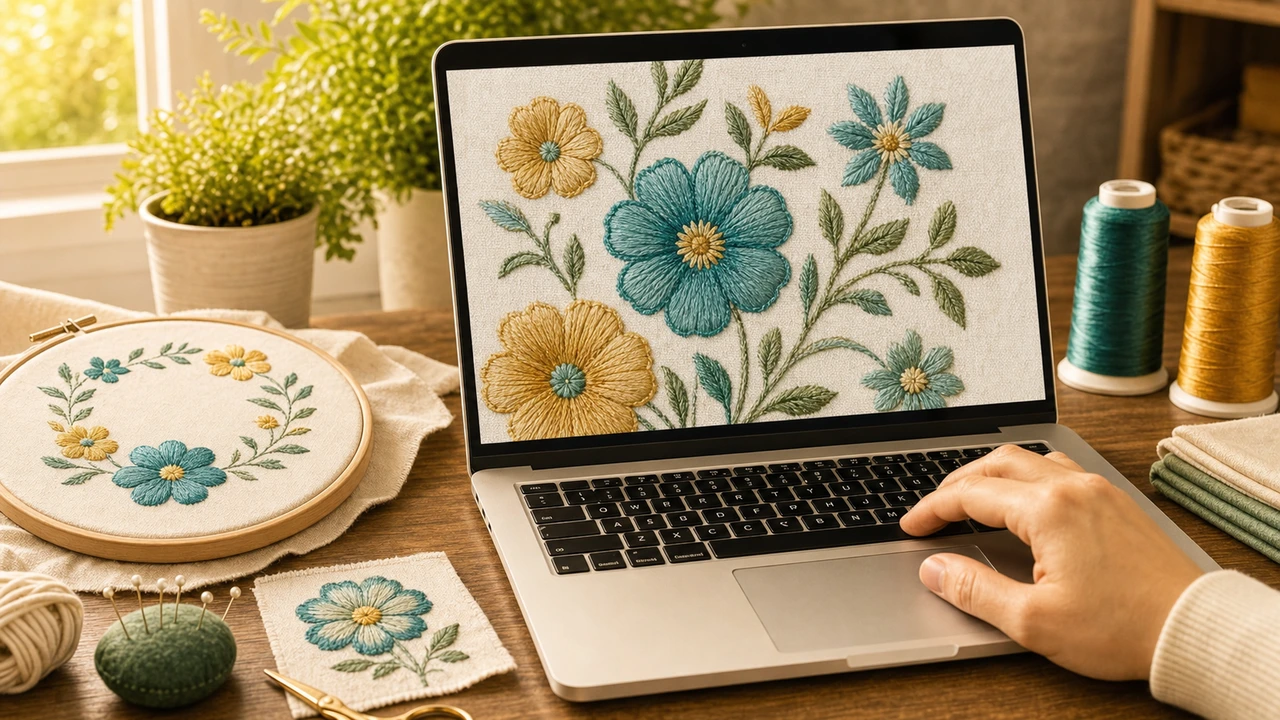
The in-browser EXP viewer renders the design as it would stitch — stitch direction, color order, and approximate finished dimensions. Useful before you transfer the file to your Melco / Bernina machine.
How to open EXP file — common questions
EXP is an embroidery format developed by Melco that became the de facto standard for commercial Melco systems and Bernina home machines a widely-used embroidery format associated with Melco commercial systems and Bernina home embroidery machines. It stores stitch data, thread colors, and design metadata. Melco Amaya, Bravo X, EMC commercial systems, and Bernina home embroidery models read EXP directly.
Yes. StitchPilot.ai opens EXP files in the browser — no Melco / Bernina software required. You can preview stitches, see colors, export a PNG, or convert to PES, DST, or JEF for a different machine.
The browser preview shows stitches, colors, and approximate dimensions. The actual stitched result depends on fabric, stabilizer, thread, hoop size, and machine settings. Always test stitch on production work.
Yes. Use the format-specific converter pages, or open the file in the StitchPilot.ai workspace and choose a different output format.
EXP is primarily used by Melco Amaya, Bravo X, EMC commercial systems, and Bernina home embroidery models. Check your specific model documentation to confirm format support.
Open a EXP now
Free browser viewer for Melco / Bernina embroidery designs. No install, no signup required for basic viewing.
Open EXP file →