Upload your EXP file
Drag and drop the EXP into the workspace, or use the file picker. Files are read in your browser — useful for design review without committing to a machine run.
 StitchPilot.ai
File preview · PNG output
Render a EXP embroidery file as a PNG preview in your browser. View stitch layout, check colors, and export an image for client approval — no Melco / Bernina software needed.
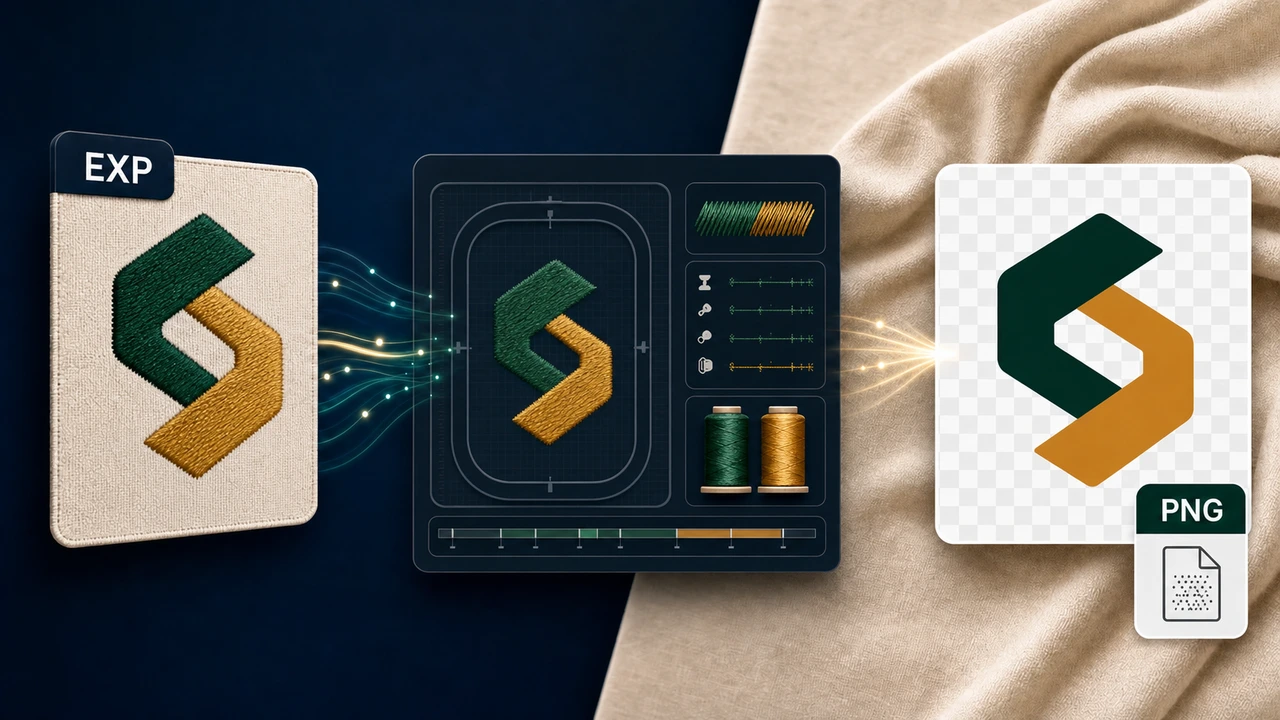
Recommended workflow
Drag and drop the EXP into the workspace, or use the file picker. Files are read in your browser — useful for design review without committing to a machine run.
See the design rendered with stitches, color order, and approximate dimensions. Identify color changes, density issues, or unexpected gaps before sending to production.
Save a PNG preview for client approval, marketplace listings, or design library archives. The PNG mirrors what the embroidery design looks like when stitched.
If you need to move the design to a different machine, head to the relevant converter page (PES, DST, JEF, VP3) to export an alternate embroidery file from the same source.
About EXP
EXP files are produced by Melco Amaya, Bravo X, EMC commercial systems, and many Bernina home embroidery machines. The format stores raw stitch and command data and is paired with an EDR or COL color file for thread metadata.
Privacy & quality
StitchPilot.ai renders EXP files in the browser. The PNG preview is a flat raster, useful for visual review and client-facing communication — it is not a stitch file and cannot be sent to a machine directly.
EXP to PNG — common questions
PNG previews let you visually inspect a EXP embroidery design without loading it onto a machine. Useful for client approval emails, design library catalogs, listing photos for marketplaces, and validating that the design opens correctly before production.
Yes. StitchPilot.ai reads EXP files in the browser — no Melco / Bernina software install required. You see the stitch layout, color order, and approximate dimensions, and you can export a PNG preview to share with clients or partners.
PNG previews are rendered at sizes suitable for client approval and marketplace listings. Larger sizes are available for production-related uses. The PNG is a flat raster — it cannot be re-stitched, only viewed.
The PNG reflects the colors stored in the EXP file (or a sensible default palette if the format does not embed RGB thread colors). For exact thread matching, refer to your machine or production palette.
PNG is the primary preview output. To convert EXP to another embroidery format such as PES, DST, JEF, or VP3, use the format-specific converter pages or the main StitchPilot.ai workspace.
Ready to continue?
Upload a EXP embroidery design, render it in the browser, and export a PNG for client review.
Open EXP file →