Confirm PES support and hoop size
The PE800 reads PES format and supports the 5” x 7” hoop. Older PES versions are compatible; if your design exports as a newer PES variant, re-export at a lower version using StitchPilot.ai.
 StitchPilot.ai
Machine guide · Brother PE800
The Brother PE800 is a popular home embroidery machine using PES format with a 5” x 7” (130 x 180mm) hoop. This guide covers PES export settings, USB transfer, design size planning, and tips for getting consistent results on the PE800.
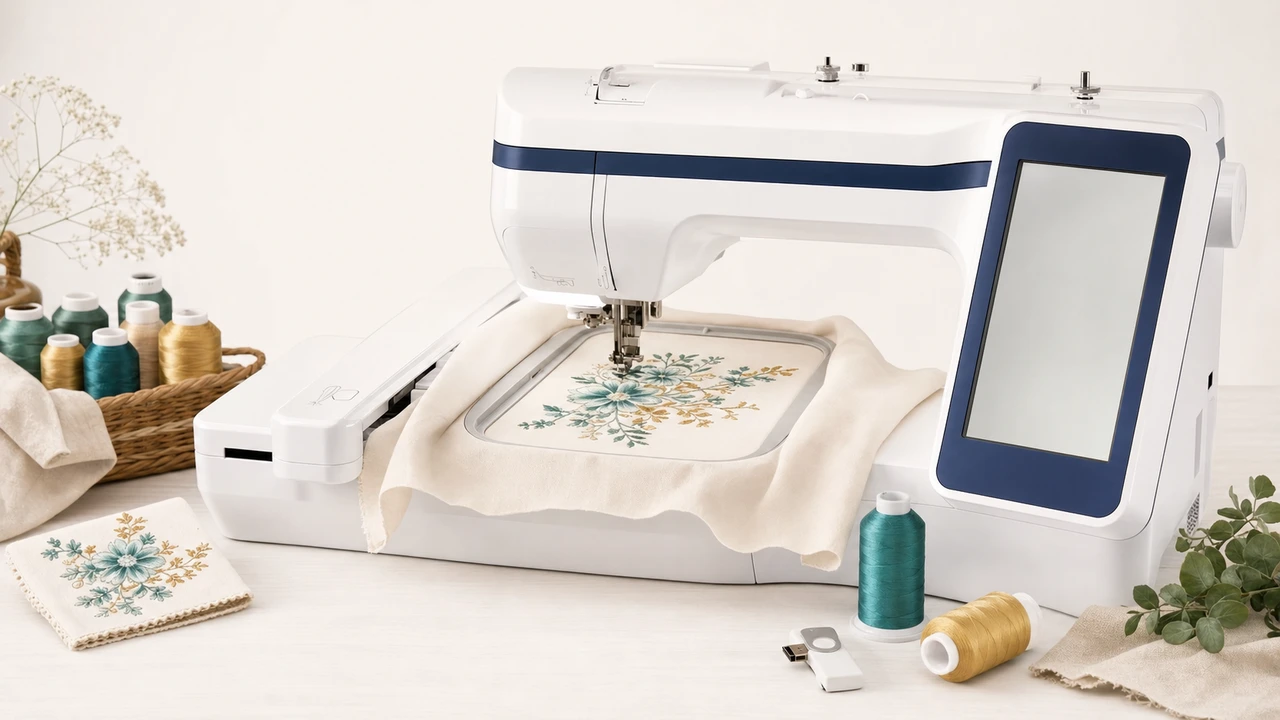
Working with Brother PE800
The PE800 reads PES format and supports the 5” x 7” hoop. Older PES versions are compatible; if your design exports as a newer PES variant, re-export at a lower version using StitchPilot.ai.
Use StitchPilot.ai to convert PNG, JPG, SVG, or WebP artwork into PES format. Set the design size to fit within 130 x 180mm before exporting. Preview the stitch result before downloading.
Copy the PES file to a FAT32-formatted USB drive, place the file in the root directory or a top-level folder, then insert the USB stick into the PE800’s USB port.
Select the design from the USB menu on the PE800, confirm the hoop size and color sequence on the LCD, then test stitch on scrap fabric before committing to your final piece.
Supported formats & hoop
The Brother PE800 reads PES, the native Brother embroidery format. The maximum embroidery area on the included 5” x 7” hoop is 130 x 180mm (5.12” x 7.09”). Design size should stay within those dimensions to avoid hoop fit errors.
Workflow tips
Most PE800 issues come down to PES version, hoop fit, or USB filesystem. Knowing the symptoms saves time.
Brother PE800 — common questions
The PE800 uses PES, Brother’s native embroidery format. Convert your design to PES before transferring to the PE800. StitchPilot.ai exports PES from PNG, JPG, SVG, and WebP artwork.
The PE800 ships with a single 5” x 7” (130 x 180mm) hoop. Designs must fit within that area to load successfully — plan size before exporting.
No. The PE800 reads PES only. Convert JEF designs to PES using StitchPilot.ai’s converter before transferring.
Use a FAT32-formatted USB drive. Copy the PES file to the drive’s root or a top-level folder, then insert the USB into the PE800’s built-in USB port. Select the design from the on-screen menu.
Common causes: PES version too new for the PE800 firmware, design larger than 5” x 7”, USB drive not FAT32, or filename too long. Re-export at an older PES version and confirm size before transfer.
Ready to convert?
Upload PNG, JPG, SVG, or WebP artwork. StitchPilot.ai converts it to PES and gives you a stitch preview before download.
Start converting →