Upload your jpg
JPG is a common starting point — Etsy mockups, photos, design exports. Use the highest-resolution JPG you have; compression artifacts and low resolution can affect how the AI identifies stitch regions for JEF output.
 StitchPilot.ai
Format converter · JEF output
Turn a JPG photo or logo into a JEF embroidery file using AI-assisted digitizing with preview checkpoints and Janome-ready workflow guidance. JEF is the native format for Memory Craft, MB-4, and Skyline embroidery machines.
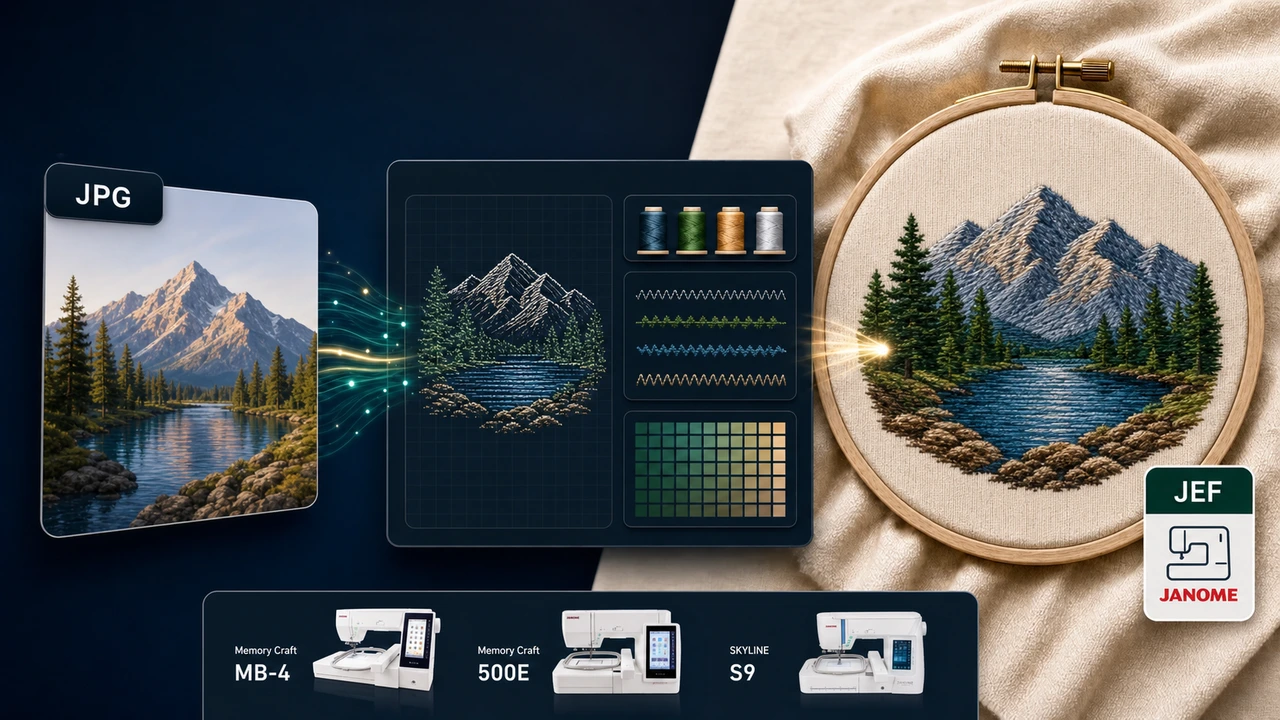
Recommended workflow
JPG is a common starting point — Etsy mockups, photos, design exports. Use the highest-resolution JPG you have; compression artifacts and low resolution can affect how the AI identifies stitch regions for JEF output.
StitchPilot.ai analyzes shapes, colors, and likely fill areas, then recommends size, color count, and quality settings appropriate for JEF output. AI output should still be reviewed before production.
Check scale, major color zones, object separation, and Janome hoop fit before committing. A visual preview catches issues earlier than a machine run and saves time on test stitches.
Download the JEF file, transfer it to your Janome machine (USB, ATA card, or direct connection depending on model), and keep your original artwork for future revisions or re-exports to other formats.
About JEF
JEF is the embroidery file format developed by Janome and used natively across their Memory Craft, MB-4 multi-needle, and Skyline lines. It stores stitch data, thread colors, and design metadata in a format that Janome machines and Janome-compatible software can read directly. JEF+ is an extended variant supporting larger designs and more color changes on capable models.
Quality & privacy
Embroidery involves physical variables that software cannot fully predict. StitchPilot.ai assists with AI-driven conversion and preview generation — the final stitched result also depends on fabric, stabilizer, needle, thread, hoop size, and machine settings.
JPG to JEF — common questions
JEF is the native embroidery file format used by Janome machines. Compatible models include Memory Craft series (200E, 300E, 350E, 400E, 500E, 550E, 9700, 11000, 12000), MB-4 multi-needle, and the Skyline S5, S7, and S9. Choose JEF when your machine or production partner is in the Janome ecosystem.
The JPG to JEF workflow turns a JPG photo or logo into a JEF stitch file that a Janome embroidery machine can read directly, with AI-assisted digitizing decisions and a preview before download.
Yes. AI conversion, preview export, and file viewing are workflow aids. Review scale, fabric, thread assumptions, density, and Janome machine constraints (such as hoop size and color count) before production. A physical test stitch is recommended for important production runs.
No. A preview is useful for client approval and quality checks, but a physical test stitch is still recommended for important production runs. Fabric, stabilizer, needle, thread, hoop size, and machine settings all affect the final stitched result.
JEF supports up to a fixed set of design parameters and is widely compatible across older and newer Janome models. JEF+ is an extended variant supporting larger designs and more color changes on capable machines. Check your specific model's manual or ask your Janome dealer to confirm which variant your machine reads.
Ready to continue?
Upload your jpg, review the AI-assisted stitch preview, and export a JEF file ready for your Janome embroidery machine.
Start JPG to JEF →